Zapier
Table of contents
- Introduction
- Getting started
- Actions
- Contact management
- Movement management
- Available webhooks
- Segment / audience triggers
- Contact triggers
- Movement triggers
- REST hooks subscription
- Use cases
- Google Ads sync
- Meta (Facebook Ads) sync
Introduction
The Fideltour app on Zapier lets you automate workflows without custom development. It offers two kinds of capabilities:
- Triggers: Fideltour notifies Zapier when an event occurs (contact created, audience activated, etc.). HDH acts as an intermediary, receiving the event from Fideltour and forwarding it to the Zap.
- Actions: Zapier sends data to Fideltour to create or update contacts and movements through the HDH API.
Getting started
To use the Fideltour app on Zapier you need:
- A Fideltour account.
- A Zapier account.
- Specific credentials to connect Fideltour from Zapier. These must be requested from hoteldatahub@fideltour.com. Along with the credentials, you'll be given the chain code and the hotel identifiers needed for contact and movement actions.
For the audience sync use cases, Fideltour's Social module must be contracted.
Actions
Actions let you send data from Zapier to Fideltour to create or update records.
Contact management
Available methods
| Method | Description |
|---|---|
| Create contact | Creates a new contact in Fideltour |
| Update contact | Updates an existing contact's information |
| Get contact list | Searches contacts applying filters and returns a list |
| Get contact by ID | Returns a contact by its Fideltour ID |
| Get contact by Email | Returns a contact by its email |
Important: Fideltour treats
identification_numberas unique. If you try to create a contact with an email or document number that already exists, you'll get an error. It's recommended to check that the contact doesn't already exist (with Get contact by Email) before creating it.
Common use cases
Updating a contact:
- Use Get contact by Email to get the contact's ID.
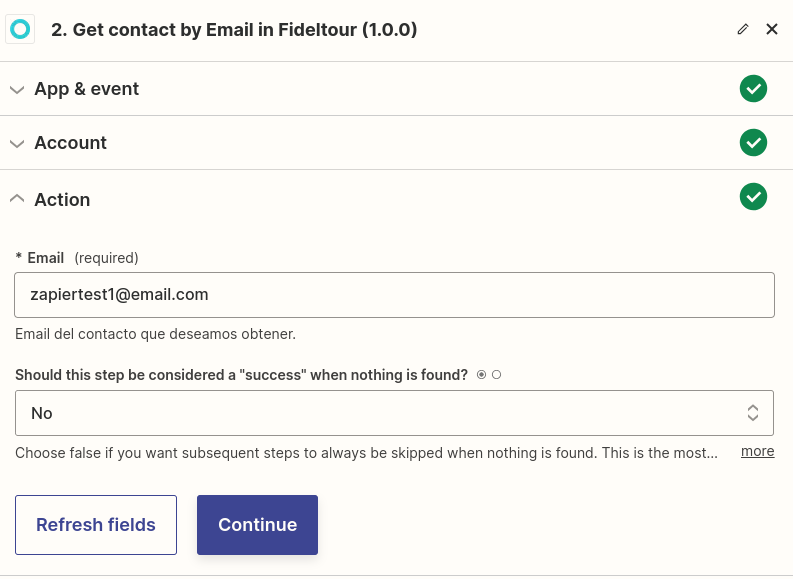
The screenshots in this guide show Zapier and Fideltour's interface in Spanish, but the fields and buttons work the same way in English.
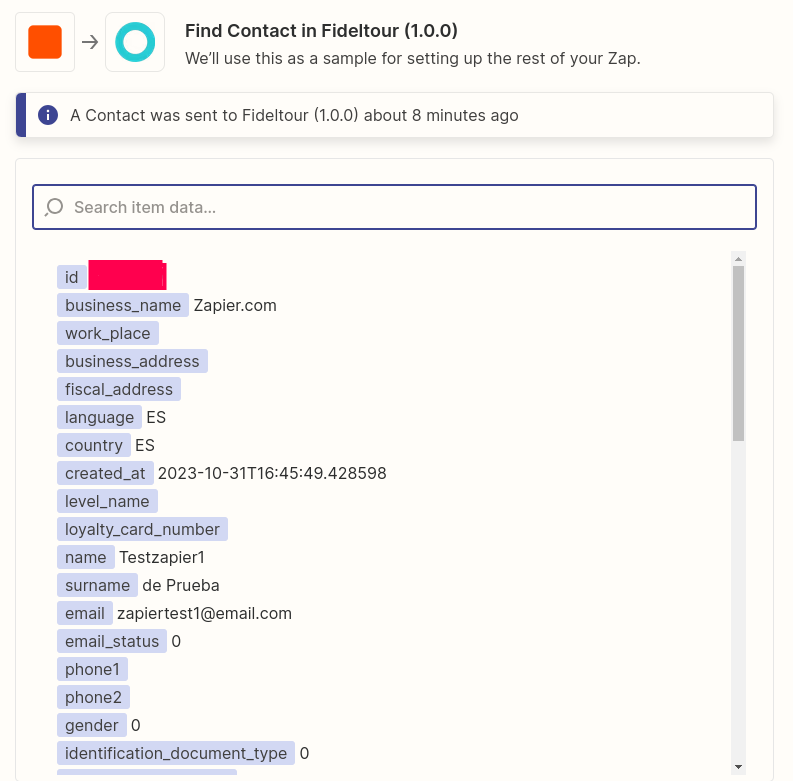
- Zapier returns the contact's information, including the ID.
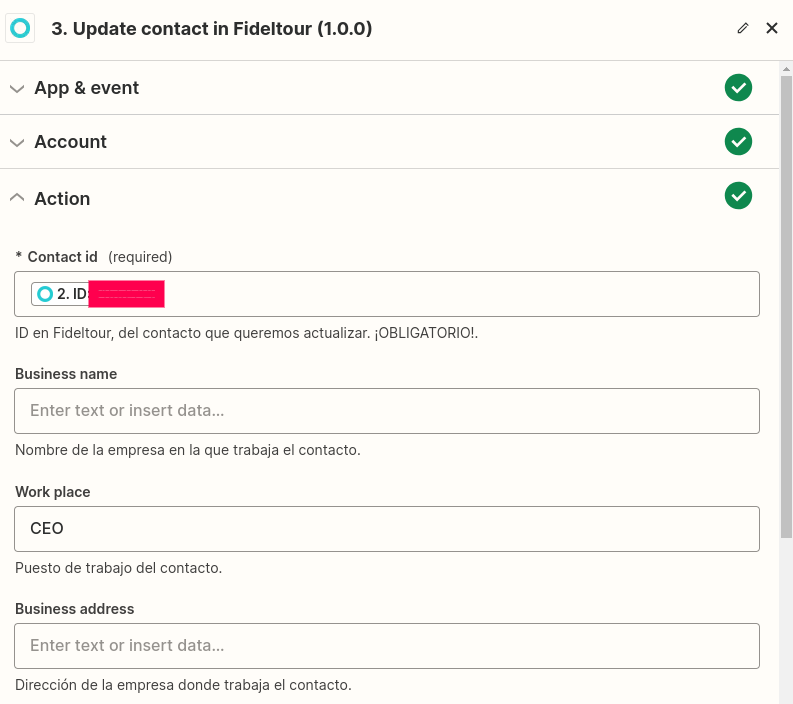
- Use Update contact with the ID obtained to update the data.
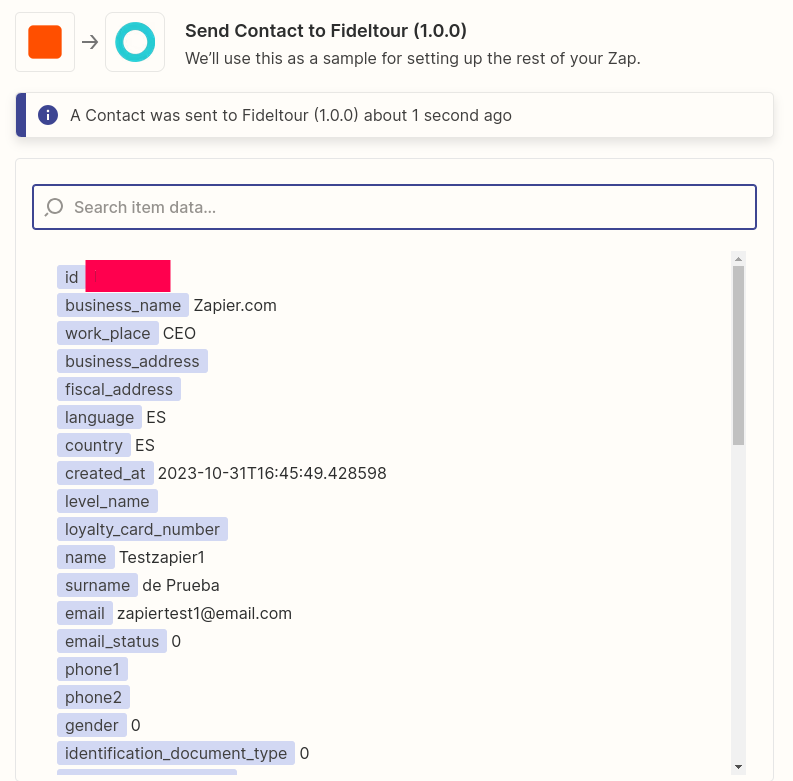
Parameter table — contact
| Field | Required | Description |
|---|---|---|
email |
Yes | Contact's email. Unique field. |
source |
Yes | Source: 0=PMS, 1=Wifi Login, 2=Facebook, 3=Web / Booking Engine, 4=Other, 5=Import, 6=Newsletter form, 7=Contact form, 8=Guest Portal, 9=Pre-Checkin, 10=Chatbot, 11=Concierge, 12=Call Center, 13=Landing Form, 14=Intranet, 15=PMS Other, 16=PMS Restaurant, 17=PMS SPA, 18=BE Other, 19=BE Restaurant, 20=BE SPA, 21=API, 22=Zapier / Make, 23=SDK / Hotel App, 24=Corporate CRM, 25=Hotel Website, 26=Venues Website, 27=Restaurant Website |
name |
No | First name |
surname |
No | Last name |
phone1 |
No | Primary phone |
phone2 |
No | Secondary phone |
birthday |
No | Date of birth (YYYY-MM-DD) |
gender |
No | 0=Not specified, 1=Male, 2=Female, 3=Non-binary, 4=Genderfluid, 5=Prefer not to say |
language |
No | Language in ISO 639-1 format |
country |
No | Country in ISO 3166-1 alpha-2 format |
province |
No | Name of the province |
town |
No | Name of the town |
zone |
No | Autonomous community, state, etc. |
address |
No | Address |
post_code |
No | Postal code |
identification_document_type |
No | 0=Other, 1=National ID, 2=Foreigner ID, 3=Passport |
identification_number |
No | Document number. Unique field. |
email_status |
No | 0=New, 1=Valid, 2=Verified, 3=Bounced, 4=Hard bounced |
subscribed |
No | true=subscribed, false=not subscribed (default) |
unsubscribe_reason |
No | 1=Incorrect email, 2=Contact's request, 3=Manager's request |
custom_tags |
No | Comma-separated tags |
work_place |
No | Job title |
business_name |
No | Company name |
business_address |
No | Company address |
fiscal_address |
No | Fiscal address |
Movement management
Important: a movement always belongs to a contact. To create a movement you must have the contact's Fideltour ID (obtained beforehand with the Get contact methods).
Available methods
| Method | Description |
|---|---|
| Create movement | Creates a new movement in Fideltour |
| Update movement | Updates an existing movement |
| Get movements list | Searches movements applying filters and returns a list |
| Get movement by ID | Returns a movement by its Fideltour ID |
Common use cases
Updating a movement:
- Use Get movements list with filters (e.g.
localizer+input_channel) to locate the movement.
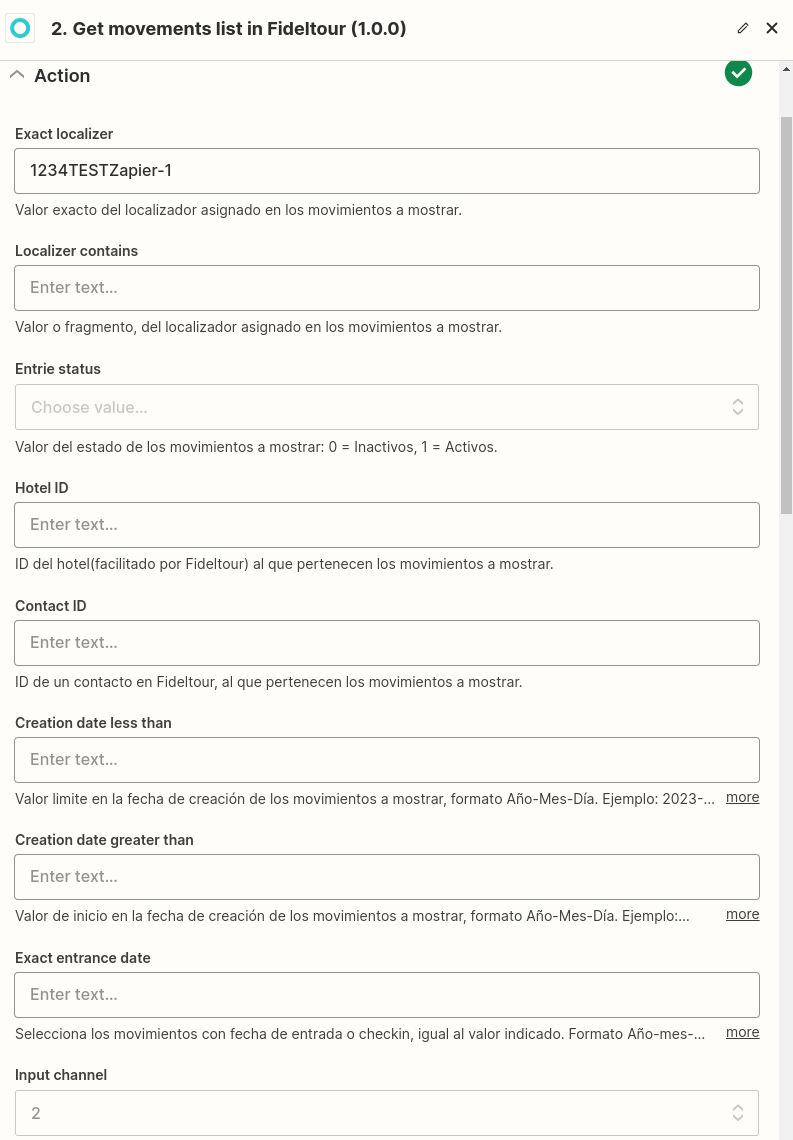
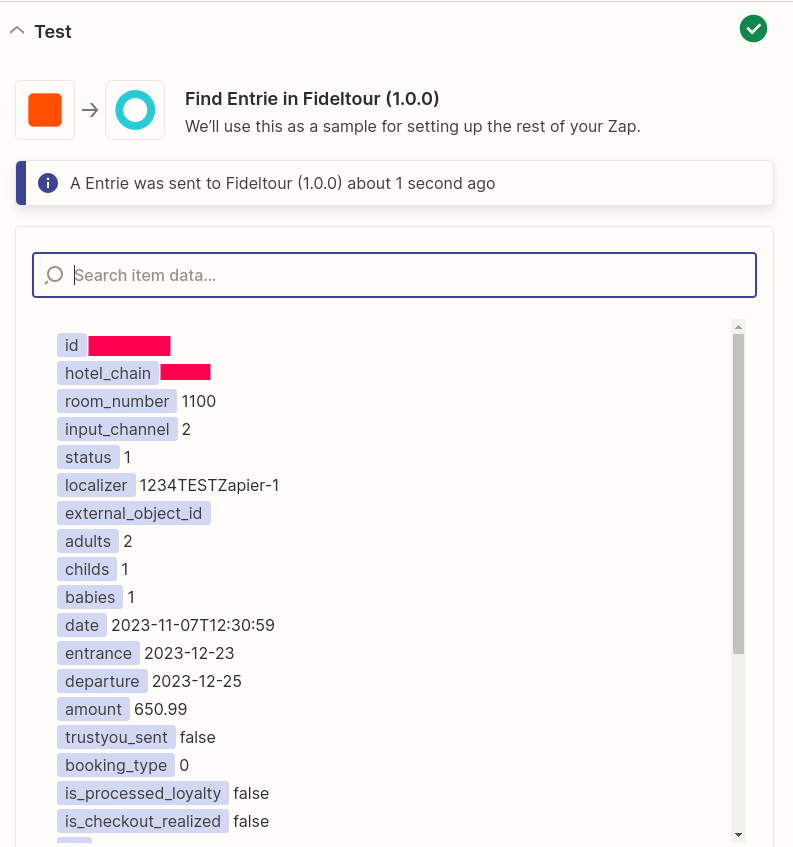
- Zapier returns the movement's information, including the ID.
- Use Update movement with the ID obtained to update the data.
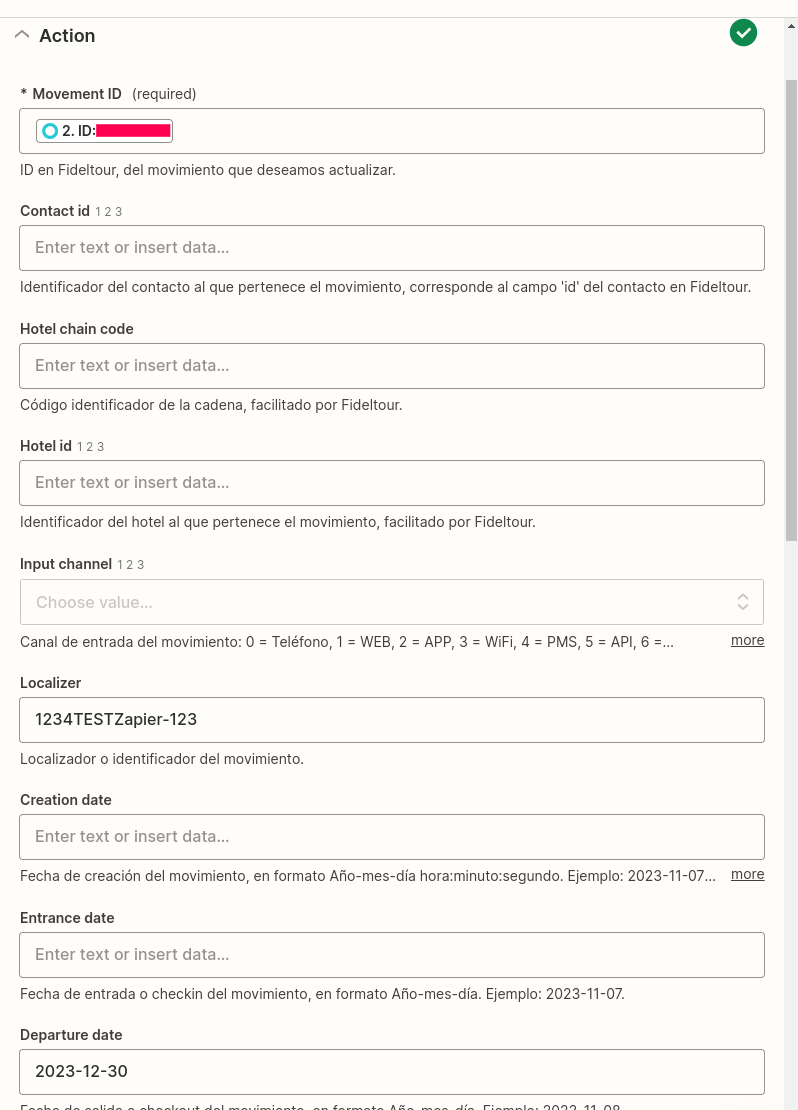
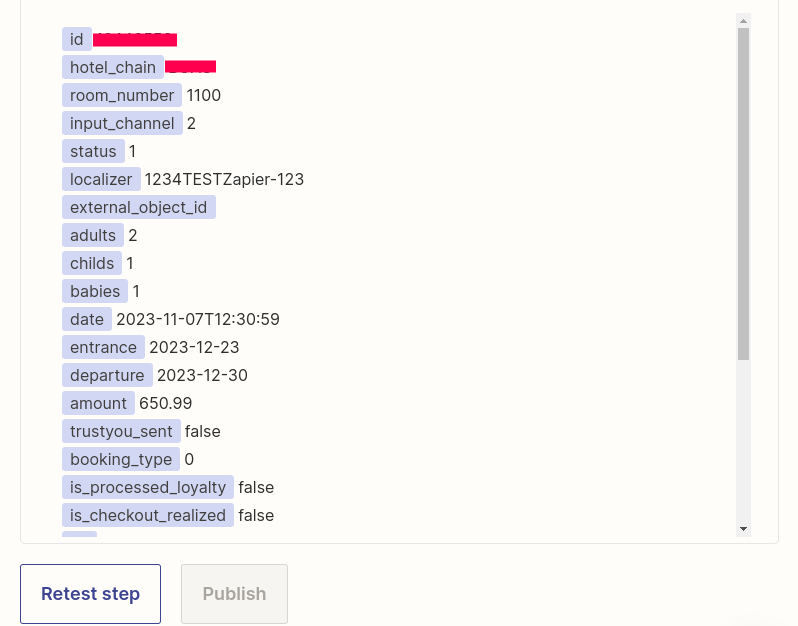
Parameter table — movement
| Field | Required | Description |
|---|---|---|
hotel_chain |
Yes | Chain code. Provided by Fideltour. |
contact |
Yes | Contact's Fideltour ID |
date |
Yes | Creation date (YYYY-MM-DD HH:MM:SS) |
entrance |
Yes | Check-in date (YYYY-MM-DD) |
departure |
Yes | Check-out date (YYYY-MM-DD) |
localizer |
Yes | Localizer or movement identifier |
hotel |
Yes | Hotel ID. Provided by Fideltour. |
booking_type |
No | 0=Booking (Default), 1=Stay, 2=Visitor, 3=Other, 4=Restaurant table, 5=Gym or SPA access, 6=Entertainment activities, 7=SPA treatment, 8=Balinese bed, 9=Excursion, 10=Transfer, 11=Room service, 12=Minibar restocking, 13=Car rental, 14=Quote, 15=Bar, 16=Restaurant, 17=SPA access, 18=Gym, 19=Sports activity, 20=Golf, 21=Parking, 22=Upselling, 23=Cross-selling |
status |
No | 1=Active (default), 0=Inactive |
agency |
No | Agency name (Booking, Expedia, etc.) |
amount |
No | Total amount |
currency |
No | Currency |
room_number |
No | Room number |
room_type |
No | Name of the room type |
regime |
No | Name of the meal plan |
adults |
No | Number of adults |
childs |
No | Number of children |
babies |
No | Number of babies |
input_channel |
No | 0=Phone, 1=WEB, 2=APP, 3=WiFi, 4=PMS, 5=API, 6=IMPORT, 7=BE, 8=CHATBOT, 9=CONCIERGE, 10=CALL CENTER, 12=CHANNEL MANAGER, 13=PMS (other), 14=PMS Restaurant, 15=PMS SPA, 16=BE (other), 17=BE Restaurant, 18=BE SPA, 19=CONNECTOR HUB, 20=Digital key platform, 21=CRM, 22=Social media form, 23=POS Restaurant, 24=POS SPA, 25=TTOO, 26=B2C, 27=B2B, 28=Agency, 29=DMC |
is_checkout_realized |
No | Indicates whether check-out has been completed. Default: false |
url |
No | URL associated with the movement, e.g. link to online check-in or satisfaction survey (max. 1024 characters) |
Available webhooks
Triggers let Zapier react to Fideltour events in real time via REST hooks.
Segment / audience triggers
These triggers fire based on the audiences configured in Fideltour's Social module.
Activate Audience Segment (type 1)
Fires every time an audience is activated in Fideltour.
Data received in the Zap:
| Field | Description |
|---|---|
segment_id |
Fideltour segment ID linked to the activated audience |
segment_name |
Name of the segment linked to the activated audience |
Deactivate Audience Segment (type 2)
Fires every time an audience is deactivated in Fideltour.
Data received in the Zap:
| Field | Description |
|---|---|
segment_id |
Segment ID linked to the deactivated audience |
segment_name |
Name of the segment linked to the deactivated audience |
Add Contact to Audience Segment (type 3)
Fires every time a contact is added to the segment of an active audience in Fideltour.
Data received in the Zap:
| Field | Description |
|---|---|
segment_id |
ID of the segment the contact was added to |
segment_name |
Name of the segment the contact was added to |
contact_id |
ID of the added contact |
contact_first_name |
Contact's first name |
contact_last_name |
Contact's last name |
contact_email |
Contact's email |
contact_phone |
Contact's phone |
contact_zip |
Contact's postal code |
contact_country |
Contact's country in ISO 3166-1 alpha-2 format |
Remove Contact from Audience Segment (type 4)
Fires every time a contact is removed from the segment of an active audience in Fideltour.
Data received in the Zap: identical to Add Contact to Audience Segment.
Contact triggers
| Trigger | Type | Event |
|---|---|---|
| Contact created | 5 | Contact created in Fideltour |
| Contact updated | 6 | Contact updated in Fideltour |
| Contact loyalty level change | 7 | Level change in the loyalty program |
| Contact loyalty updated | 8 | Loyalty information updated |
| Contact unsubscribed | 9 | Opted out of communications |
| Contact invalid email | 10 | Email moved to invalid status |
Payloads:
- Created / updated: full contact record plus
hotel_chain. - Level change:
{ hotel_chain, contact, email, level, level_name, event: "level_updated" }. - Unsubscribed:
{ hotel_chain, contact, email, event: "unsubscribe" }. - Loyalty updated: Fideltour's payload plus
hotel_chainandevent: "loyalty_updated". - Invalid email: Fideltour's payload plus
hotel_chainandevent: "email_invalid".
The permission required on the ApiUser for these triggers is contacts.
Movement triggers
| Trigger | Type | Event |
|---|---|---|
| Movement created | 11 | Movement created in Fideltour |
| Movement updated | 12 | Movement updated in Fideltour |
Payload: movement data plus hotel_chain.
The permission required on the ApiUser for these triggers is movements.
REST hooks subscription
Zapier manages subscriptions against HDH using the customer's ApiUser:
Subscribe (when a Zap is activated):
POST https://app.hoteldatahub.io/api/v1/webhooks/zapier-webhooks-subscriptions/
Authorization: Token <jwt>
Content-Type: application/json

{
  "url": "https://hooks.zapier.com/hooks/standard/...",
  "type": 5
}
Unsubscribe (when the Zap is deactivated):
DELETE https://app.hoteldatahub.io/api/v1/webhooks/zapier-webhooks-subscriptions/{id}/
Authorization: Token <jwt>
Each ApiUser can only see and manage its own subscriptions. Required permissions by type: segments (types 1–4), contacts (types 5–10), movements (types 11–12).
For contact and movement triggers to work, Fideltour must be configured to send its webhooks to the customer's generic HDH endpoints:
| Fideltour event | HDH endpoint |
|---|---|
| Contact created | {hotel_chain}/contacts/ |
| Contact updated | {hotel_chain}/contacts/update/ |
| Loyalty level change | {hotel_chain}/contacts/update-level/ |
| Contact unsubscribed | {hotel_chain}/contacts/unsubscribe/ |
| Loyalty updated | {hotel_chain}/contacts/update-loyalty-data/ |
| Invalid email | {hotel_chain}/email-event/status-updated/ |
| Movement created | {hotel_chain}/entries/ |
| Movement updated | {hotel_chain}/entries/update/ |
Use cases
Google Ads sync
Sync audiences configured in Fideltour with Google Ads customer lists.
Additional requirements: Fideltour's Social module contracted and a Google Ads account.
1. Create a customer list in Google Ads
When an audience is activated in Fideltour, automatically create a customer list in Google Ads using the Activate Audience Segment trigger.
It's recommended to use the dedicated Zapier template for this.
Notes
- If a Google Ads list with the same name as the audience already exists, Zapier will return an error (Google Ads doesn't allow duplicate names).
- When activating an audience that already has contact history, Google Ads creates the list but doesn't transfer the history. See Export and import historical data.
2. Add a contact to a Google Ads list
When a contact is added to an active Fideltour audience, add it to the corresponding Google Ads list as well, using the Add Contact to Audience Segment trigger.
It's recommended to use the dedicated Zapier template.
Note: the Zap includes an intermediate action to find the Google Ads list by name before adding the contact.
3. Remove a contact from a Google Ads list
When a contact is removed from an active Fideltour audience, remove it from the Google Ads list as well, using the Remove Contact from Audience Segment trigger.
It's recommended to use the dedicated Zapier template.
Note: as with the previous case, the Zap includes an intermediate action to locate the list by name.
Export and import historical data (Google Ads)
When an audience already has history at the time it's first activated, transferring it one by one via Zapier is expensive. The free process is:
- Go to the contacts section of Fideltour's CRM module.
- Filter by the audience's segment.
- Select all and export to Excel.
- Within a few minutes you'll receive the export by email.
- Adapt the Excel's structure to the format required by Google Ads.
- Import it into the Google Ads list. There are two ways:
New customer list:
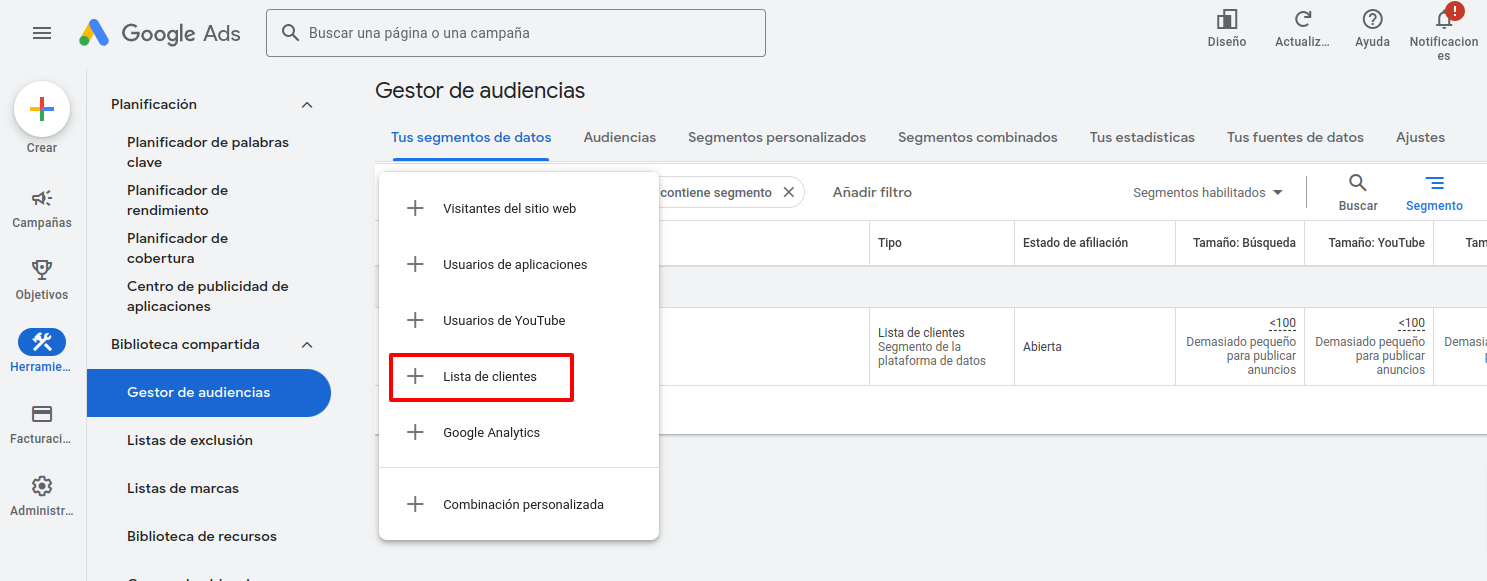
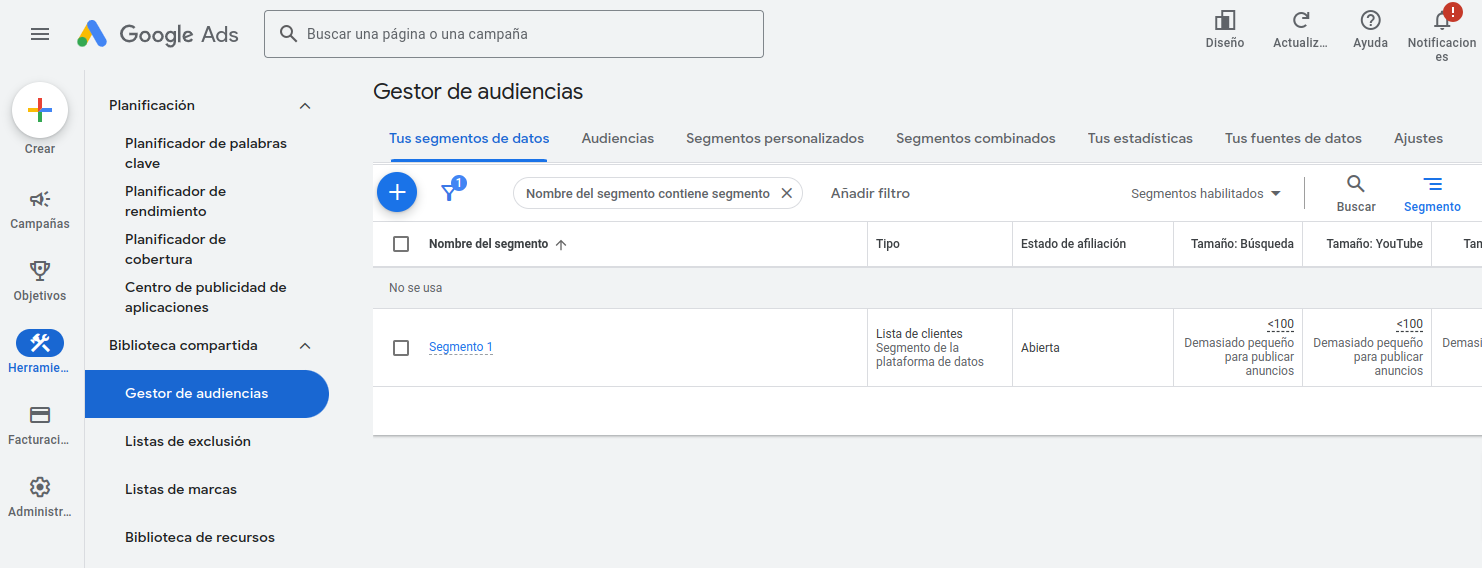
In Audience Manager, click + and select Customer list.
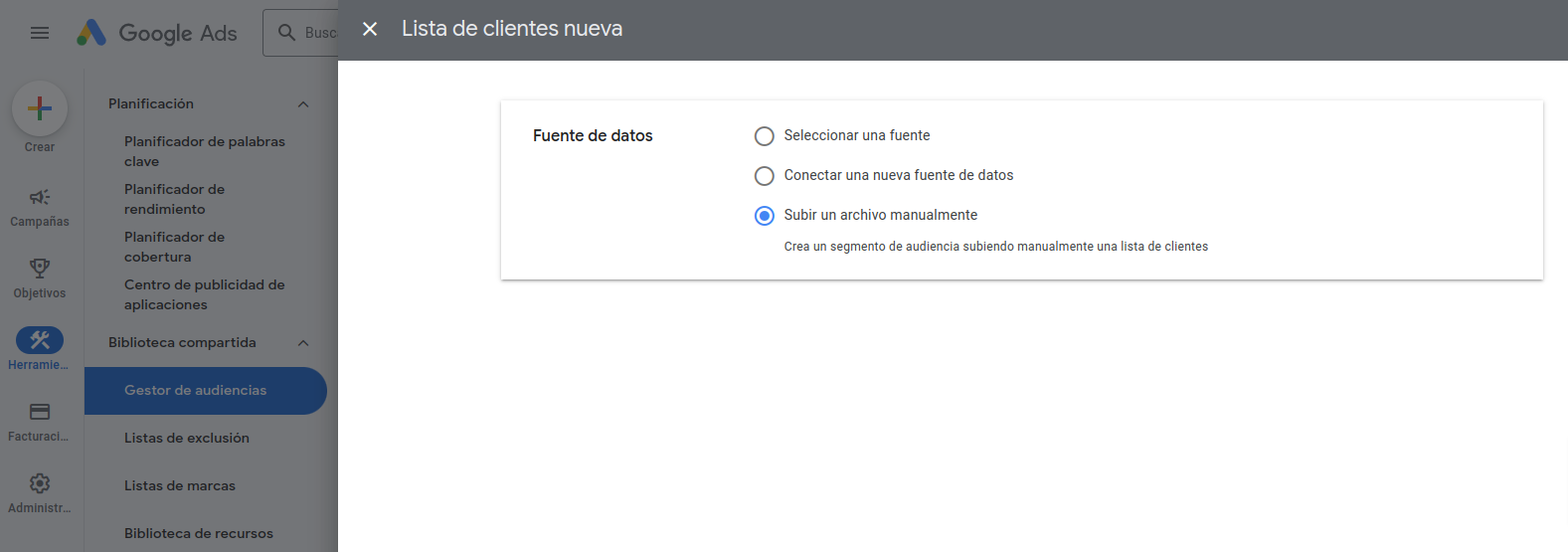
On the next screen, select Upload a file manually as the data source.
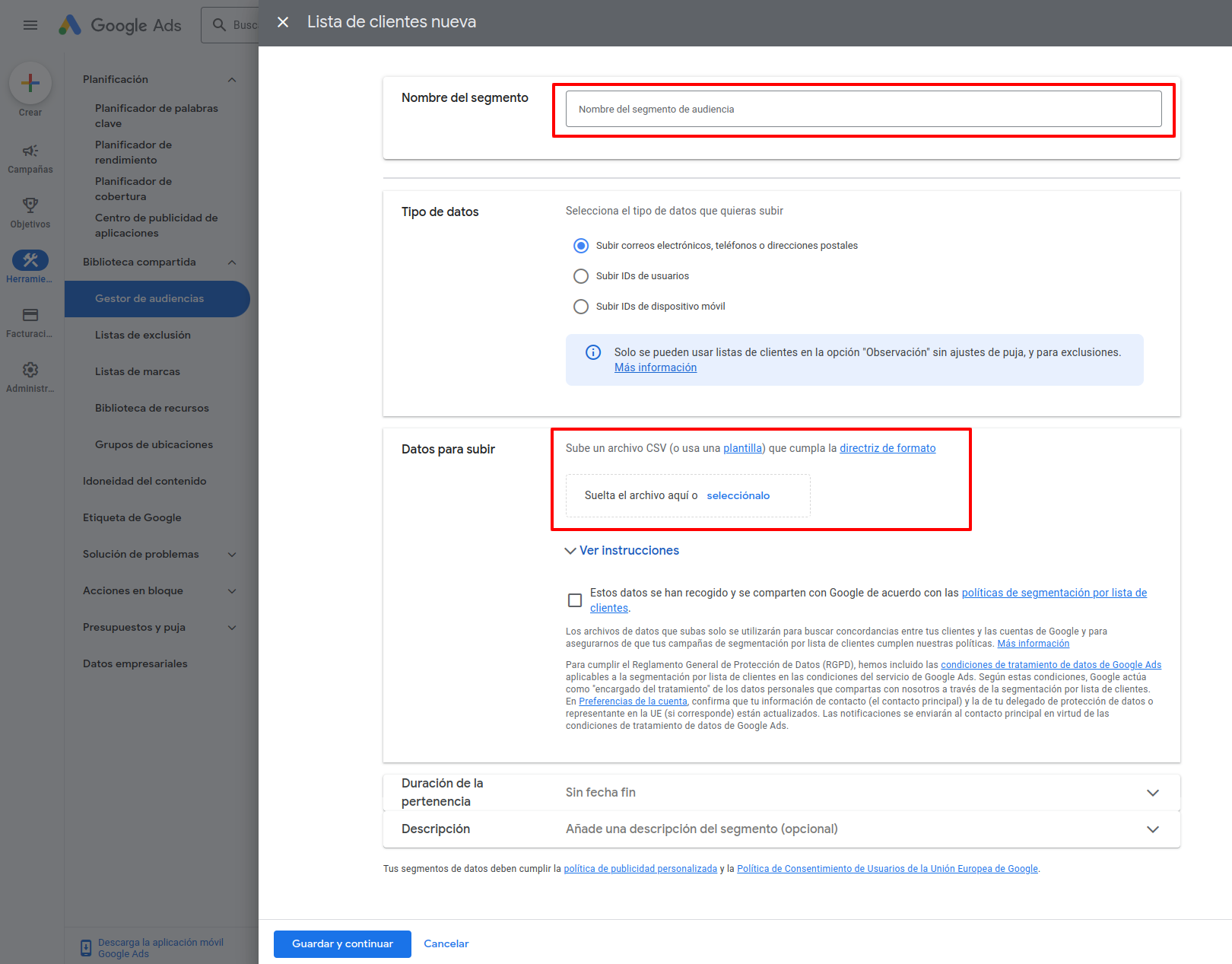
Give the segment a name, upload the CSV file with the contacts exported from Fideltour, and save.
Edit an existing list:
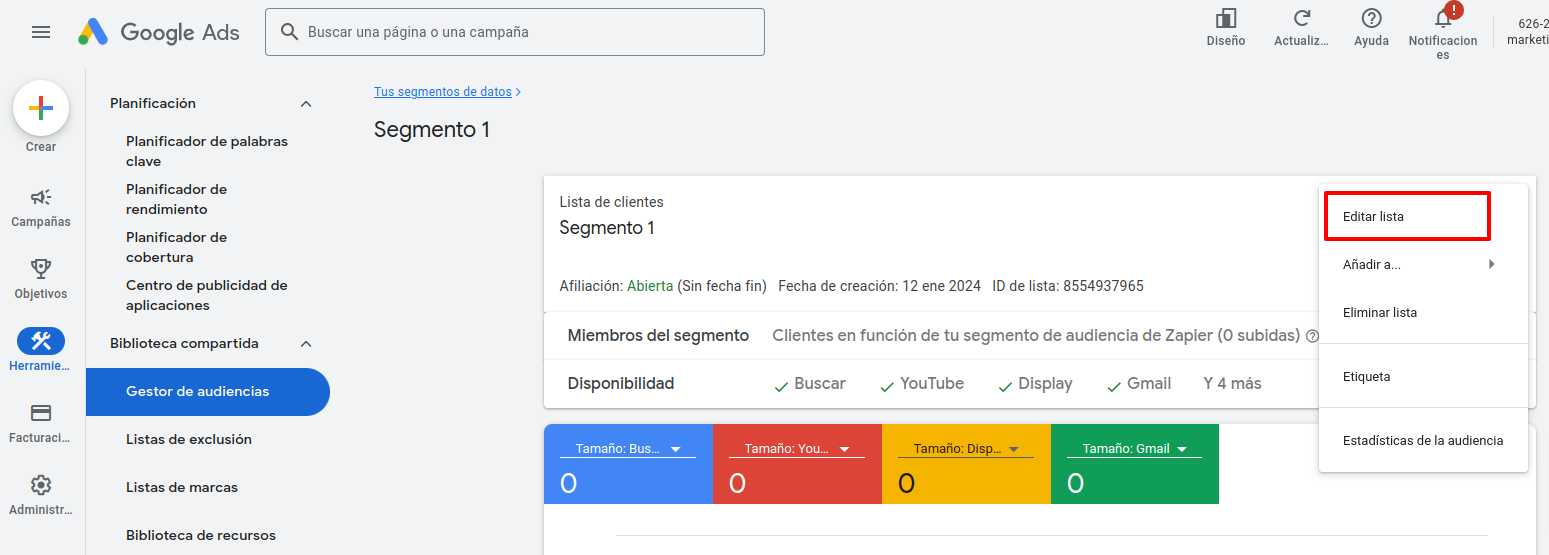
In Audience Manager, locate the corresponding list and click Edit list.
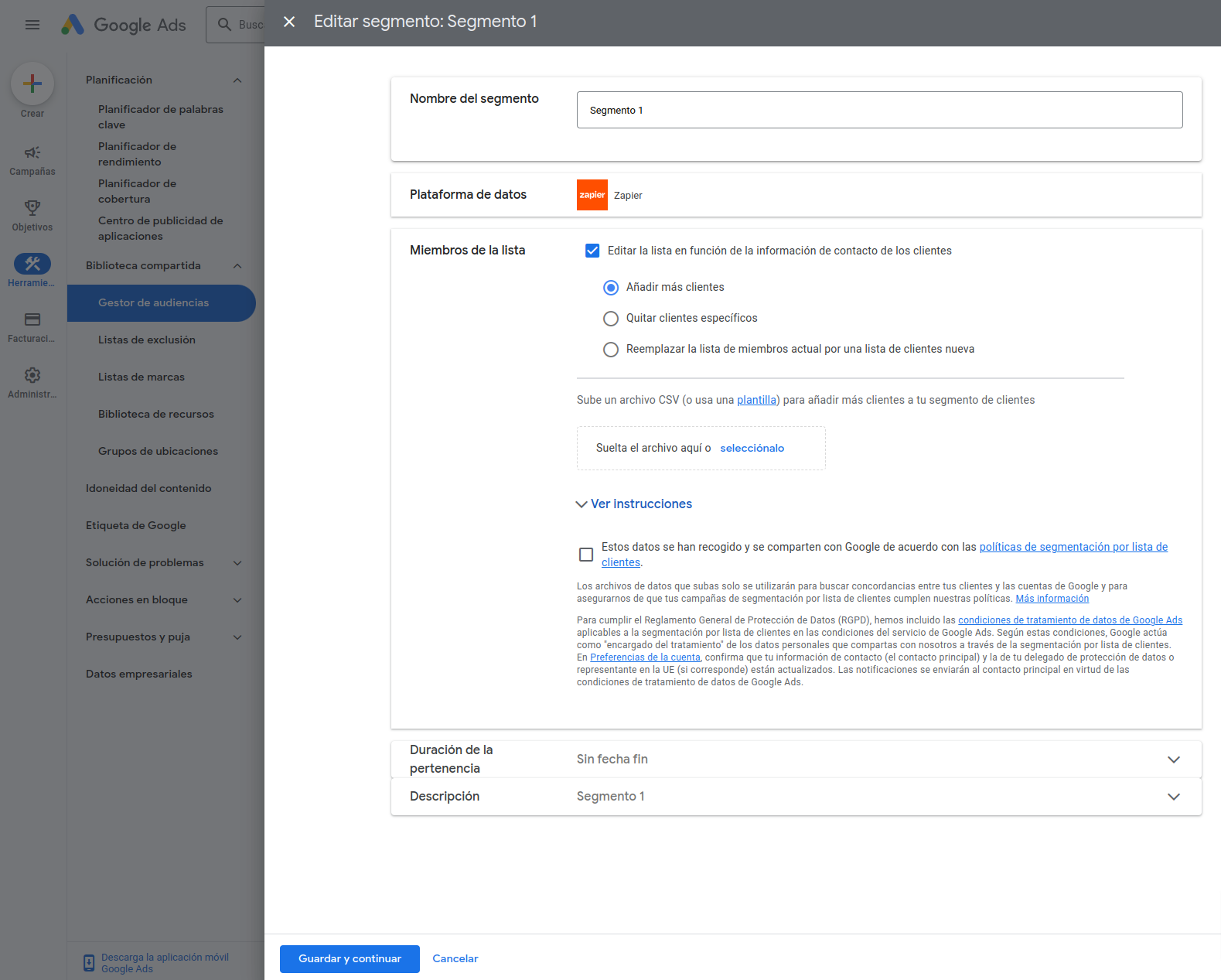
In the edit form, select Add more customers and upload the CSV file.
Meta (Facebook Ads) sync
Sync audiences configured in Fideltour with Facebook Business Manager audiences.
Additional requirements: Fideltour's Social module contracted and a Facebook Business Manager account.
1. Create an audience in Facebook
When an audience is activated in Fideltour, automatically create an audience in Facebook using the Activate Audience Segment trigger.
It's recommended to use the dedicated Zapier template.
Note: if the activated audience already has contact history, Facebook creates the audience but doesn't transfer the history. See Export and import historical data.
2. Add a contact to a Facebook audience
When a contact is added to an active Fideltour audience, add it to the Facebook audience as well, using the Add Contact to Audience Segment trigger.
It's recommended to use the dedicated Zapier template.
Note: unlike Google Ads, Facebook doesn't have a Zapier action to find audiences by name. This means a separate Zap is needed for each audience. If there are 3 active audiences, 3 Zaps are needed.
3. Remove a contact from a Facebook audience
When a contact is removed from an active Fideltour audience, remove it from the Facebook audience as well, using the Remove Contact from Audience Segment trigger.
It's recommended to use the dedicated Zapier template.
Note: same as with adding, a separate Zap is needed per audience.
Export and import historical data (Meta)
The process is equivalent to Google Ads, with Facebook as the final destination instead:
- Go to the contacts section of Fideltour's CRM module.
- Filter by the audience's segment.
- Select all and export to Excel.
- Within a few minutes you'll receive the export by email.
- Adapt the Excel's structure to the format required by Facebook.
- Import it into the Facebook audience. There are two ways:
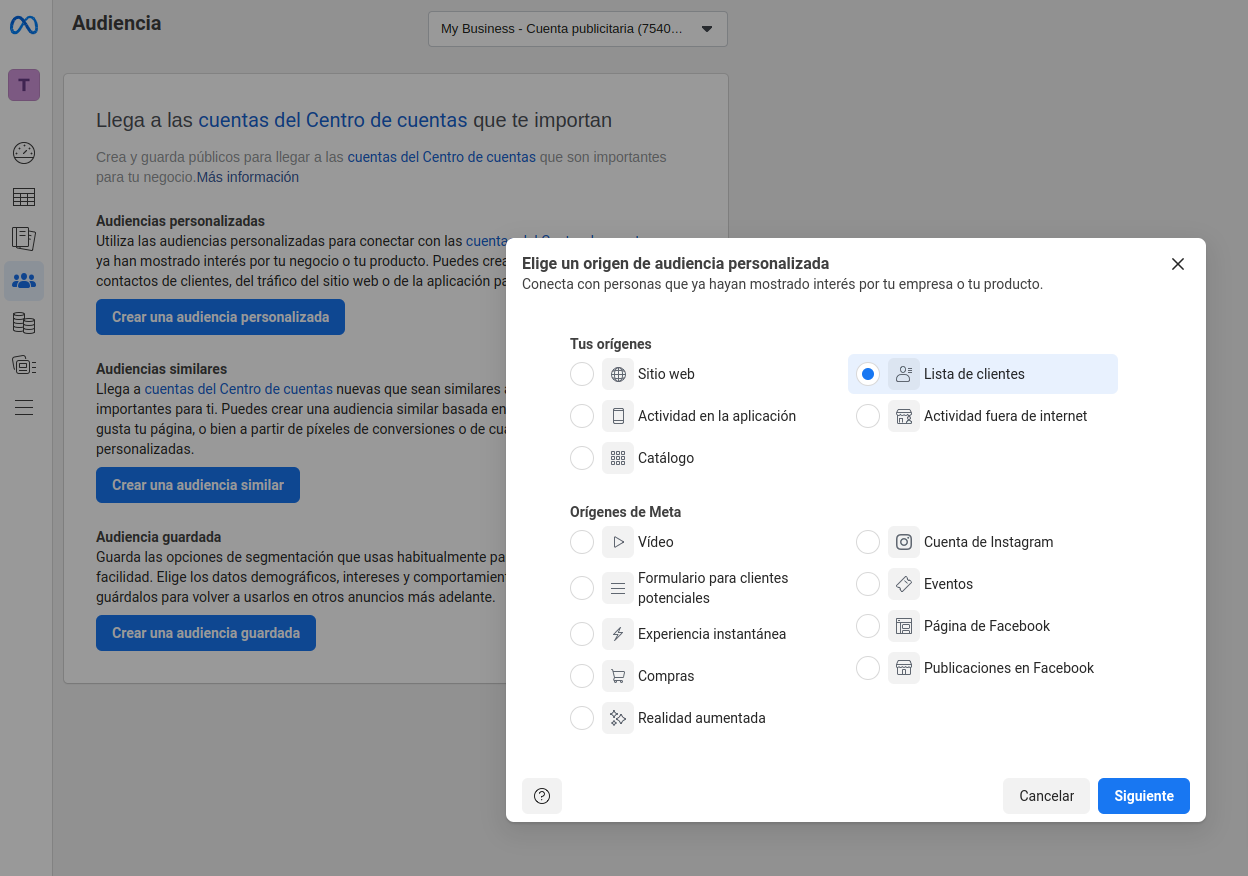
New audience:
In Audience Manager, click Create a custom audience.
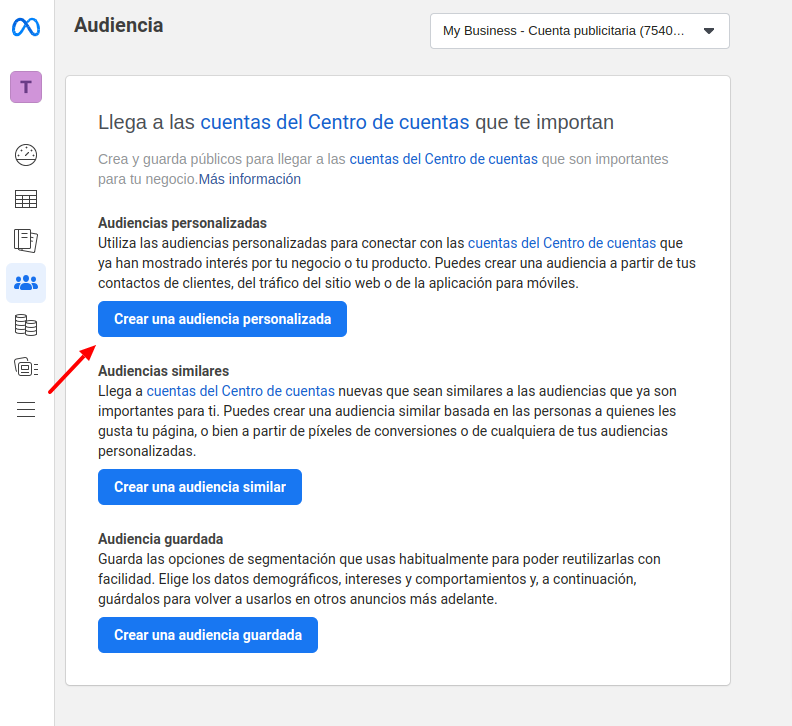
Select Customer list as the audience source.
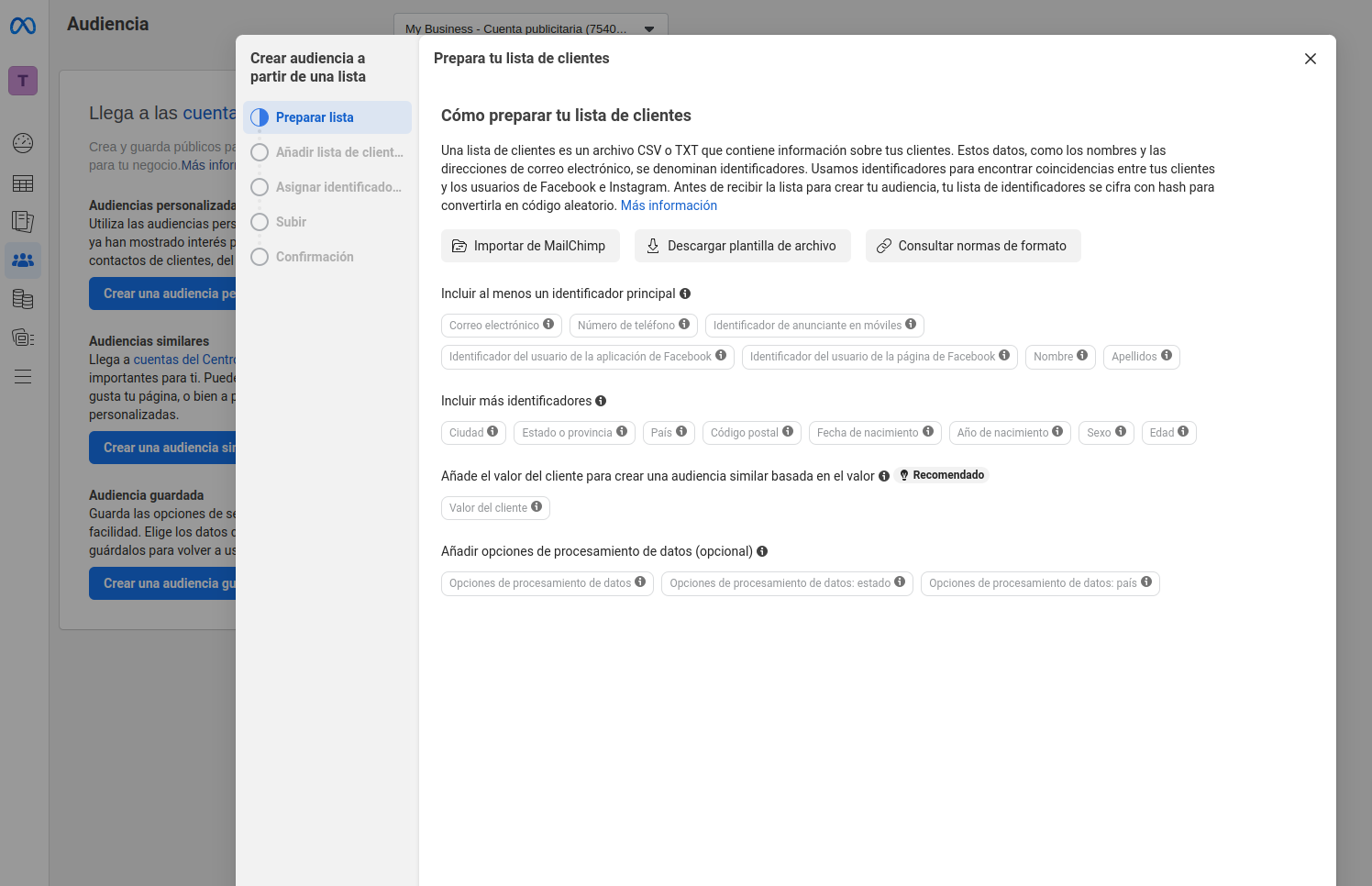
Prepare the file following the required format. You can download the official template from this step.
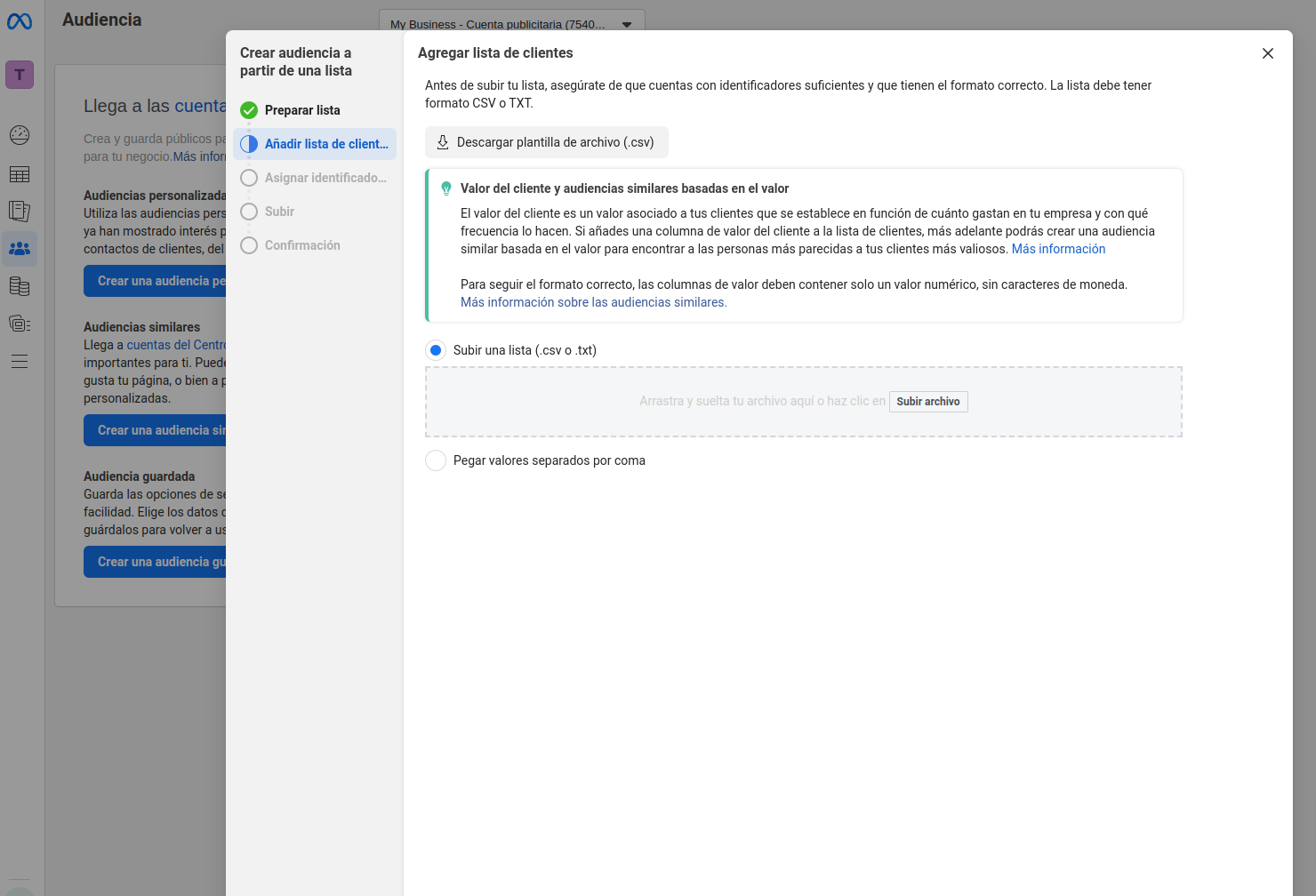
Upload the CSV file with the contacts exported from Fideltour.
Edit an existing audience:
In Audience Manager, select the audience and click Actions.
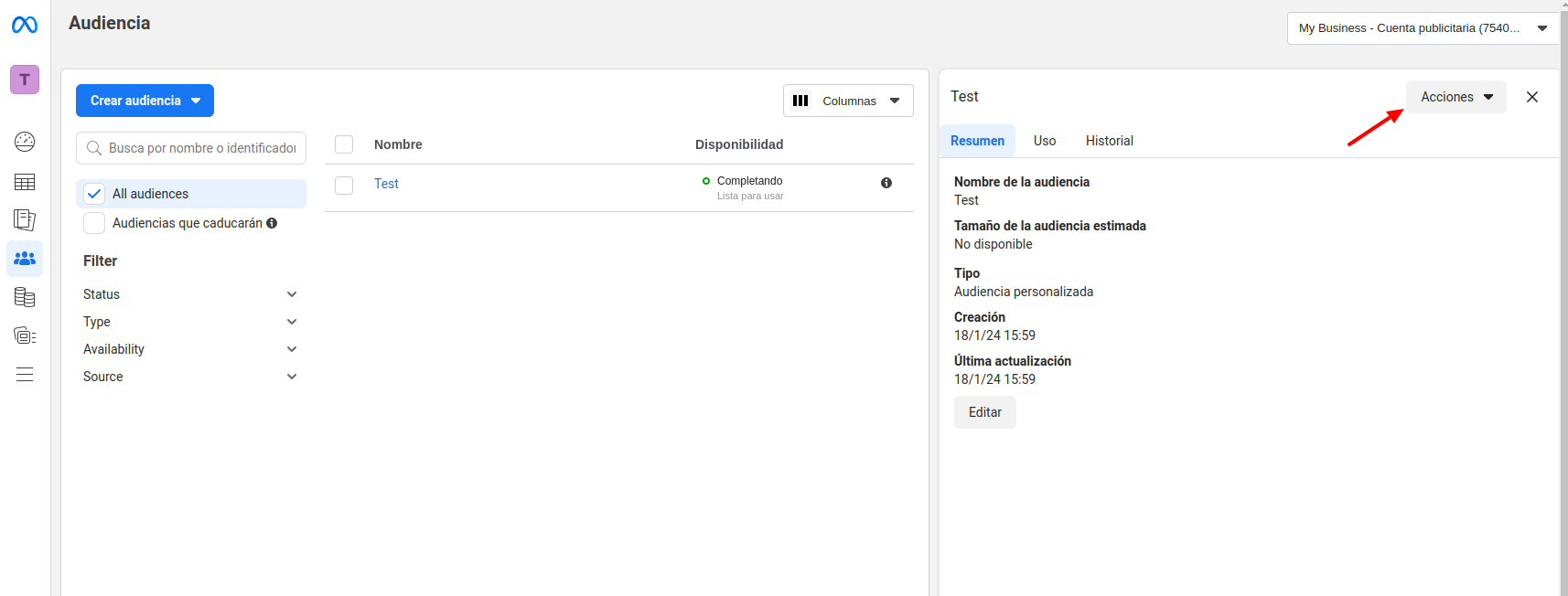
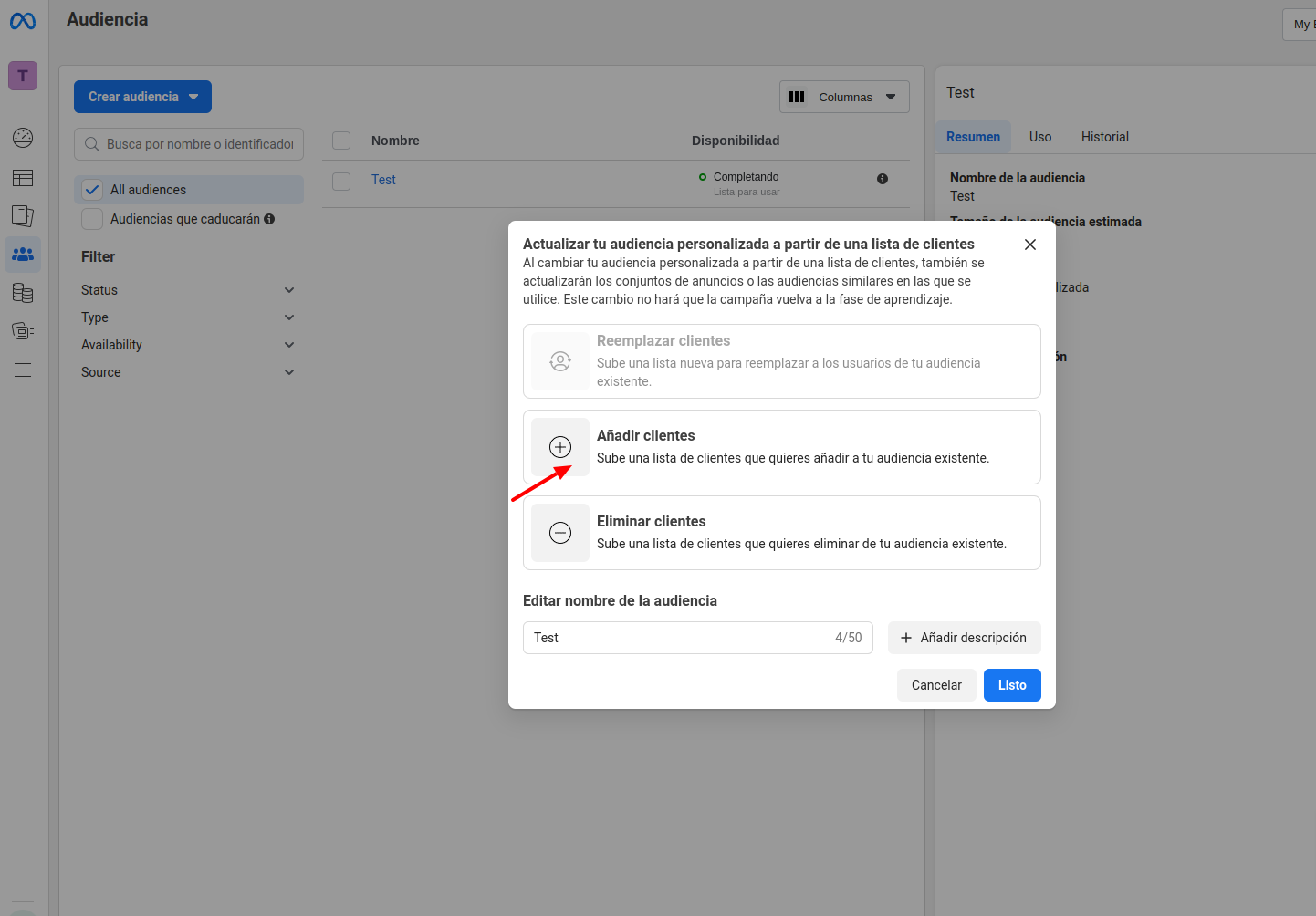
Select Add customers and upload the CSV file.